
Before Home Design Evening
Every team member working on your stand should have their own exhibitor ticket and use the email address that ticket was issued to.
Before the event, make sure each team member has downloaded the ArchiPro app and can log in successfully.
When logging in, use the same email address your exhibitor ticket was sent to. This is important so the app recognises you as part of the correct exhibiting business.
If you cannot remember your password, select Email me a code. We’ll send a six-digit code to your email address, which you can use to sign in without resetting your password.
Tip: We recommend logging in before arriving at the venue so you are ready to start scanning as soon as the event begins.
How to scan a lead
Once you have spoken with an attendee and they are happy to share their details:
- Open the ArchiPro app and access the lead scanning function.
- The first time you scan, allow the app to access your phone’s camera.
- Ask the attendee to open their Home Design Evening ticket in the ArchiPro app.
- Point your camera at the QR code on their ticket.
- Once the scan is confirmed, the attendee will be saved as a lead.
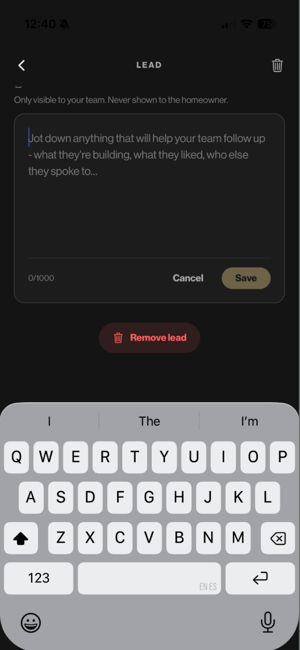
- Add a note while the conversation is still fresh. This could include the product they were interested in, their project stage, what they are planning or how you would like to follow up.
- Continue scanning throughout the evening. Every successful scan is saved automatically.
Add notes while you scan
A name and email address are useful. Context makes the lead much more valuable.
Use the Notes field to capture anything your team will want to remember after the event. For example:
Renovating in Brighton. Interested in outdoor heating. Project starting early next year. Send specification information next week.
If you have several people working on your stand, you can also include the team member’s initials in the note if that is useful for your own follow-up process.
Where do my leads go?
You do not need to wait until after Home Design Evening to receive your leads.
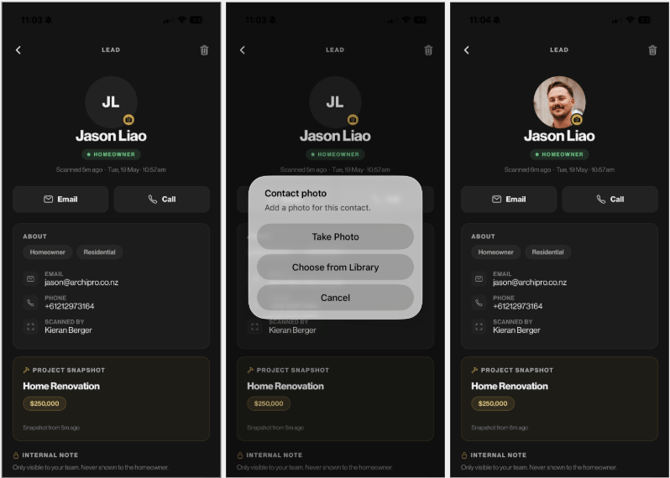
Once an attendee is scanned, the lead is added instantly and automatically to your ArchiPro account.
You can access your leads through the app and through ArchiPro Business Manager. In Business Manager, you can filter your leads to show those captured through Home Design Evening and export them as a CSV if you would like to work with them in your own CRM or follow-up process.
After the event
We recommend following up while the conversation is still recent.
Use your notes to make the follow-up relevant to what you discussed on the night rather than sending the same message to every attendee.
Your Home Design Evening leads will remain available through ArchiPro Business Manager, so your team can continue to review, manage and export them after the event.
Having trouble logging in or scanning?
First, check that you are signed into the app using the same email address your exhibitor ticket was issued to.
If you are signed into another ArchiPro account, go to Settings, sign out, then log back in using the correct email address. You can select Email me a code to receive a six-digit login code by email.
If your camera is not opening when you try to scan, check that camera permissions are enabled for the ArchiPro app in your phone settings.
If you are still having trouble on the night, speak to a member of the ArchiPro team and we can help.